Push-to-Talk Voice Typing on Mac: Bind Dictation to a Mouse Button
Push-to-talk voice typing on macOS works best when you hold to speak and release to stop — no toggle, no double-tap. Most Mac dictation and voice-input tools bind to the Fn (Globe) key; LinguaX lets you bind that same hold to a mouse side button, turning any push-to-talk voice tool on Mac into a thumb press.
Why use a mouse button for push-to-talk
- Your hand is already on the mouse while reading, browsing, or reviewing.
- A side button is faster to reach than a keyboard key mid-task.
- Hold-to-talk feels more natural than press-once-to-start, press-again-to-stop.
- It keeps your keyboard hand free for quick edits between dictations.
How it works in LinguaX
LinguaX includes a Modifier Hold gesture. When assigned to a mouse button, the button behaves like physically holding a modifier key:
- Press and hold the mouse button → the Fn (Globe) modifier is held down.
- Release the button → the modifier is released.
Because the action runs only while the button is held and stops the instant you let go, it maps perfectly to hold-to-talk voice tools — the same gesture LinguaX built specifically for push-to-talk apps like Typeless.
Setup steps
- Open LinguaX and go to Mouse+ settings.
- Select the mouse button you want to use (a side button works well).
- Choose the Modifier Hold gesture and set the modifier to Fn.
- Save. The button now holds Fn for as long as you hold it.
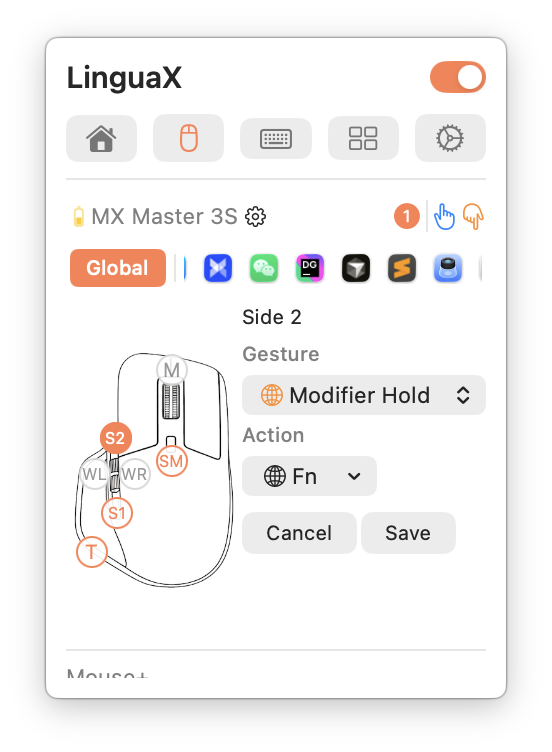
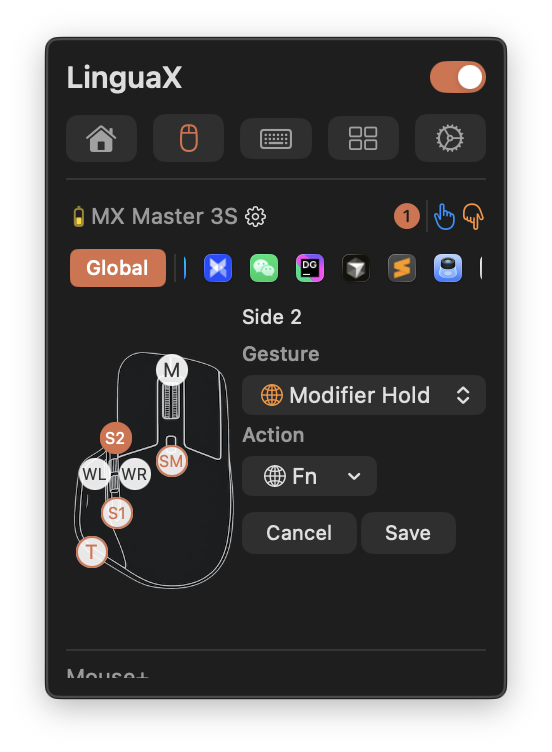
Modifier Hold uses the button exclusively. Saving it will replace any other gestures previously mapped to that button.
Configure your voice tool to match
Point your dictation tool's push-to-talk shortcut at the Fn (Globe) key:
- macOS Dictation — set the dictation shortcut to the Globe/Fn key in System Settings → Keyboard → Dictation.
- Hold-to-talk voice typing apps — in apps that support a press-and-hold hotkey (for example Typeless, Wispr Flow, or superwhisper), set the talk hotkey to Fn/Globe.
Once both sides use Fn, holding the mouse button starts dictation and releasing it stops.
If your voice app uses its own shortcut instead of Fn/Globe, use the Wispr Flow and superwhisper hotkey setup to choose between Modifier Hold and normal keyboard shortcut mapping.
Tips for a reliable setup
- Use a button you do not need for clicking or scrolling, so push-to-talk never conflicts with normal use.
- Grant LinguaX Accessibility permission so it can hold the modifier system-wide.
- If a voice tool offers both "toggle" and "hold" modes, pick hold to match this gesture.
- Test in a plain text field first to confirm dictation starts and stops cleanly.
Troubleshooting quick checks
- Confirm Accessibility permission is granted to LinguaX.
- Make sure no other utility maps the same button to a different action.
- Verify the voice tool's hotkey is set to Fn/Globe (not a different key).
- Re-save the Modifier Hold gesture if the button previously had another mapping.
Frequently asked questions
Does this work with any voice app besides macOS Dictation?
Yes. Any voice tool that triggers on the Fn/Globe key works out of the box — macOS Dictation, Wispr Flow, superwhisper, Typeless. For voice tools with their own hotkey, use LinguaX's regular Keyboard Shortcut mapping instead of Modifier Hold.
Do I need a Logitech mouse?
No. Any USB or Bluetooth mouse with a spare side button works. Recognized Logitech models (MX Master 2S/3/3S/4, MX Anywhere, G502 X, M720, M585, and more) get extra default mapping optimization, but push-to-talk itself does not depend on Logitech hardware.
Do the mappings survive sleep/wake?
Yes. Bluetooth mice reconnect automatically after sleep and LinguaX refreshes input services on wake, so the mouse-to-Fn mapping keeps working without a relaunch.
Is LinguaX free?
There is a 30-day full-feature free trial with no account required. After that it is a $9.9 one-time purchase covering 3 devices, no subscription.
What if my voice app uses a different hotkey than Fn/Globe?
Use LinguaX's regular Keyboard Shortcut gesture on the mouse button to send that app's specific shortcut. The push-and-hold behavior still works because the mouse button is held down — so hold-to-talk voice apps get their hotkey held while you press the mouse.
Get started
LinguaX is a free download with a 30-day trial — no account, no telemetry. If it fits your workflow, it is a $9.9 one-time purchase covering 3 devices.
Download LinguaX and set up hands-free push-to-talk free for 30 days.