Button & Side-Button Mapping
macOS treats most extra mouse buttons as dead weight. Mouse+ turns side buttons, wheel tilt, and thumb buttons into real actions — back/forward, app launches, window controls, media keys, or any shortcut you record.
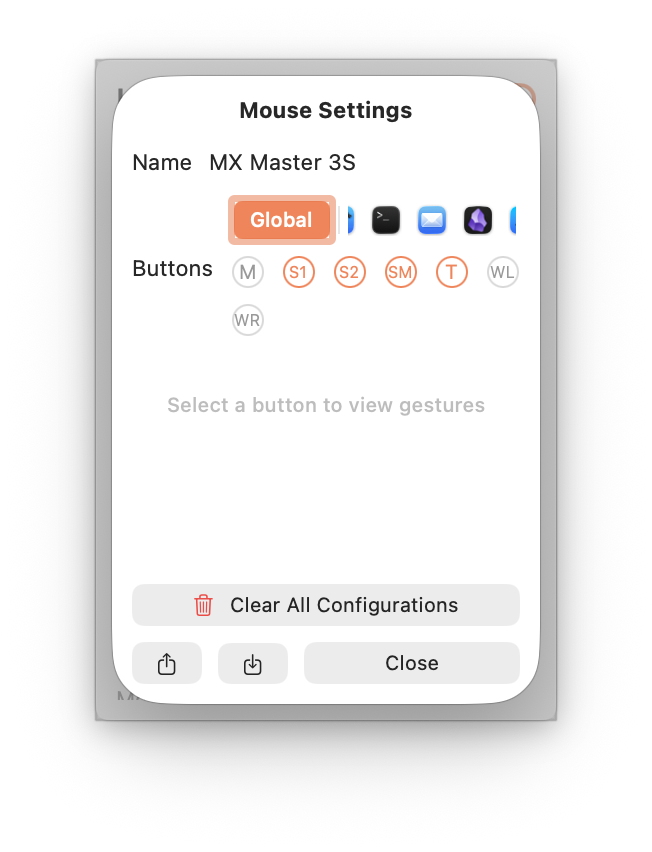
Mappable buttons
Depending on your device, Mouse+ exposes named button slots:
Left,Right,MiddleSide 1–Side 4(side buttons)Wheel Tilt Left/Wheel Tilt Right— tilting the wheel left or right, used for horizontal scrollingScroll Modeslot on MX Master and MX Anywhere models (toggles the MagSpeed wheel)Thumbslot on MX Master models (behind the thumb rest) — MX Anywhere models don't have this buttonThumbslot on Logi Lift, POP Mouse, MX Master 4 (each maps to a different physical button — see the per-model guides for placement)
For recognized mice, side buttons are mapped automatically after detection, so there is less manual setup.
Action types
Each mouse button (and gesture) can trigger one of:
- Open Application — open a specific application.
- System Setting — window controls, Mission Control, Switch Space Left/Right, Control Center, Notification Center, screenshots, Finder actions, and developer workflows.
- Media Control — playback and volume, grouped under a dedicated Media Control category.
- Keyboard Shortcut — record any key combination, including plain single keys and system-reserved keys, with the built-in shortcut recorder.
- Modifier Hold — hold a modifier while the button is pressed (see below).
For AppleScript-based custom actions, see Shortcuts & Hotkeys.
Modifier-hold
A button can hold the Fn (Globe) modifier for as long as you press it, releasing the instant you let go. This is the foundation for push-to-talk: holding the button injects the Fn/Globe key to start macOS Dictation, and releasing stops it. See Push-to-Talk Voice Typing with a Mouse Button.