Trigger macOS Dictation with a Mouse Button
macOS Dictation is triggered by the Globe (Fn) key, but reaching that key mid-task is awkward. With LinguaX you can map a mouse button to the Globe key, so a single side-button press starts dictation — and the same button can push-to-talk in hold-to-talk voice apps.
How the mouse button maps to Dictation
LinguaX's Modifier Hold gesture makes a mouse button behave like the Fn (Globe) key:
- A quick press sends a Globe key tap → this is what macOS Dictation listens for.
- Press and hold keeps Globe held down → this is what hold-to-talk voice apps use to record.
So one mouse button covers both the built-in Dictation and third-party voice typing.
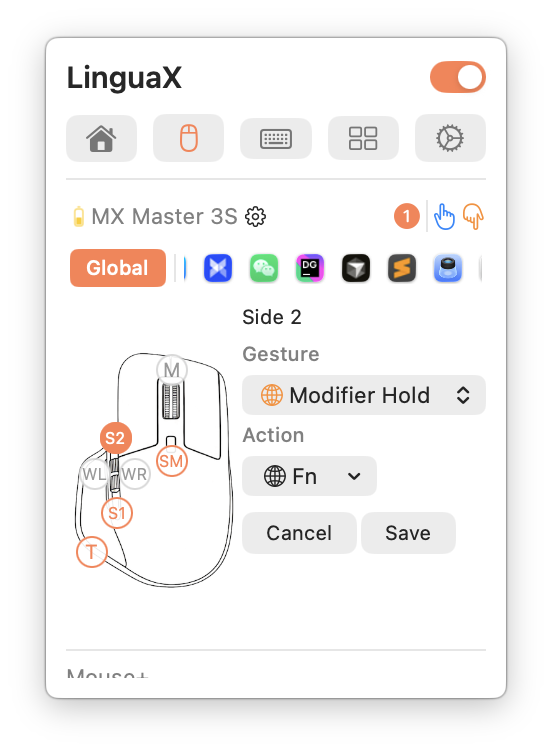
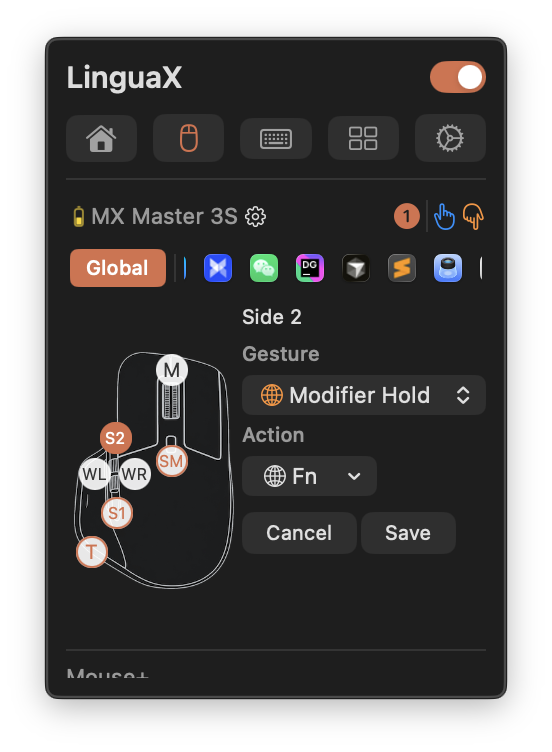
Set up the mouse button
- Open LinguaX and go to Mouse+ settings.
- Pick a side button you do not use for clicking or scrolling.
- Choose the Modifier Hold gesture and set the modifier to Fn.
- Save.
Modifier Hold uses the button exclusively. Saving it replaces any other gesture on that button.
Configure macOS Dictation
- Open System Settings → Keyboard → Dictation and turn Dictation on.
- Set the Shortcut to a Globe (🌐) based option.
- Click into any text field and press your mapped mouse button to start dictation; press again to stop.
Note: built-in Dictation is toggle-based (press to start, press to stop). The exact shortcut options vary by macOS version — pick the Globe/Fn one. If you want true hold-to-talk (record only while held, stop on release), use a hold-to-talk app as below.
For true push-to-talk (hold-to-talk apps)
If you prefer holding to talk, use a voice app that supports a press-and-hold hotkey (for example Typeless, Wispr Flow, or superwhisper), set its hotkey to Fn/Globe, and hold the mouse button while you speak. See Push-to-Talk Voice Typing with a Mouse Button for the full setup.
For tools that use their own shortcuts instead of Fn/Globe, follow the Wispr Flow and superwhisper hotkey setup and map the app shortcut to a mouse button.
Common mistakes
- Mapping a button you also need for clicking — pick a spare side button.
- Forgetting Accessibility permission for LinguaX, so it cannot hold the modifier.
- Expecting hold-to-talk from built-in Dictation — that is the toggle model; use a hold-to-talk app for press-and-hold.
- Leaving another utility mapped to the same button.
Troubleshooting quick checks
- Confirm Accessibility permission is granted to LinguaX.
- Verify the Dictation shortcut is set to a Globe/Fn option.
- Test in a plain text field first.
- Re-save the Modifier Hold gesture if the button had a previous mapping.
Get started
LinguaX is a free download with a 30-day trial — no account, no telemetry. If it fits your workflow, it is a $9.9 one-time purchase covering 3 devices.
Download LinguaX and trigger dictation from your mouse free for 30 days.