Trigger Typeless with a Mouse Button on Mac
Typeless defaults to holding the Fn (Globe) key for push-to-talk dictation — but Fn is one of the most awkward keys to reach mid-task, and most external devices can't even emit it. With LinguaX, you can trigger Typeless from a mouse side button: hold the button to speak, release to insert the text. Your hand never leaves the mouse.
Why move the Typeless trigger to the mouse
- Your hand is already on the mouse while browsing, reading, or reviewing — reaching for Fn breaks the flow.
- A thumb side button is faster to press than any keyboard key.
- Hold-to-talk on a button feels like a walkie-talkie: no toggle state to remember.
- Fn is a hardware-level key that many remotes and macro tools cannot emit — LinguaX's Modifier Hold holds the real Fn modifier system-wide, so Typeless receives exactly what it expects.
How it works
LinguaX includes a Modifier Hold gesture. Assigned to a mouse button, the button behaves like physically holding a modifier key:
- Press and hold the mouse button → the Fn (Globe) modifier is held down.
- Release the button → the modifier is released, and Typeless inserts the transcribed text.
The action lives only while the button is held, which maps one-to-one onto Typeless's hold-to-talk model.
Setup steps
1. Stop macOS from claiming the Globe key
By default macOS uses the Globe/Fn key for Show Emoji & Symbols or Change Input Source, which swallows the key before Typeless sees it:
- Open System Settings → Keyboard.
- Find "Press 🌐/Fn key to".
- Set it to Do Nothing.
2. Confirm Typeless uses Fn
In Typeless → Settings → Shortcuts, keep the default Fn hold-to-talk hotkey. (Every Typeless shortcut is rebindable here if you later want a different layout.)
3. Bind the mouse button in LinguaX
- Open LinguaX and go to Mouse+ settings.
- Select a spare side button (a thumb button works well).
- Choose the Modifier Hold gesture and set the modifier to Fn.
- Save.
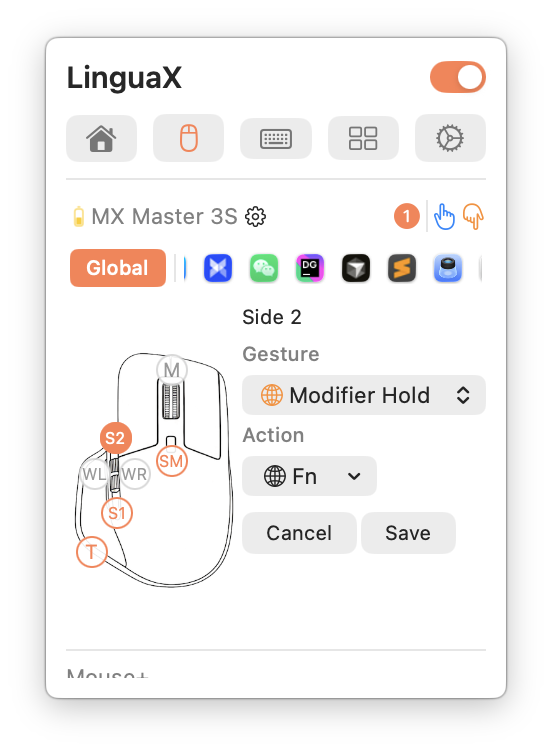
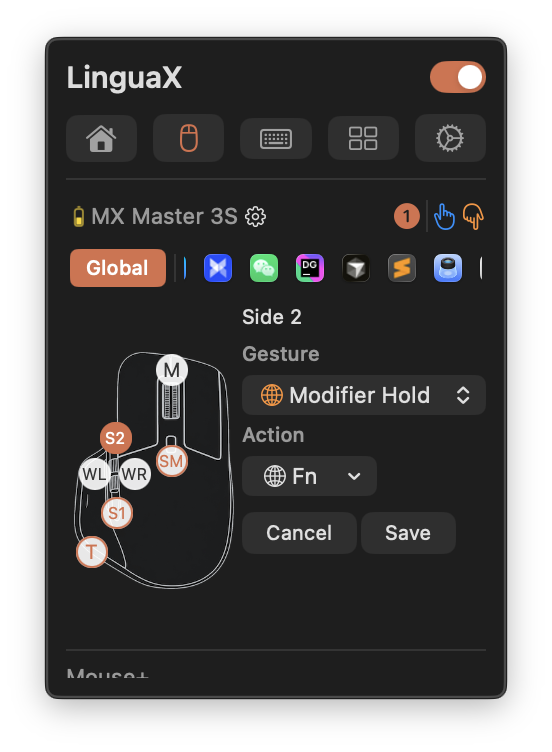
Modifier Hold uses the button exclusively. Saving it will replace any other gestures previously mapped to that button.
4. Test
Click into any text field, press and hold the mouse button, speak, and release. Typeless inserts the cleaned-up text at the cursor.
Prefer toggle-style? Use hands-free mode instead
If holding a button for long passages is tiring, Typeless also has a hands-free mode (Fn + Space by default — press once to start, press Fn again to finish). To trigger that from the mouse:
- In LinguaX Mouse+, select the side button.
- Choose a normal click gesture and set the action to Keyboard Shortcut.
- Record Fn + Space (or your custom hands-free shortcut from Typeless settings).
- Save — one click starts dictation, a second click stops it.
The same approach works for Typeless's other shortcuts, like Translate (Fn + Left Shift) or Ask AI (Cmd + Shift + A).
Tips for a reliable setup
- Use a button you don't need for clicking, scrolling, or browser Back/Forward.
- Grant LinguaX Accessibility permission so it can hold the modifier system-wide; Typeless needs Microphone and Input Monitoring permissions on its side.
- Test in a plain text field first before relying on it in a browser, IDE, or chat app.
- Don't bind the same button in both LinguaX and another mouse tool (Logi Options+, Karabiner) — conflicting grabs drop events.
Troubleshooting
- Typeless doesn't start when holding the button → check that macOS isn't claiming the Globe key (step 1), and that LinguaX has Accessibility permission.
- Dictation starts but text never inserts → check Typeless's own Microphone / Input Monitoring permissions.
- The button does its old action instead → re-save the Modifier Hold gesture; it replaces previous mappings on that button.
- Works in Notes but not in a specific app → some apps intercept input differently; re-test with a plain text field to isolate whether it's app-specific.
Frequently asked questions
Can I trigger Typeless with a mouse button?
Yes. Typeless uses the Fn (Globe) key as its default hold-to-talk hotkey. LinguaX's Modifier Hold gesture lets a mouse side button hold Fn for as long as you press it, so holding the mouse button starts Typeless dictation and releasing it inserts the text.
Why does Typeless stop working when I press Fn?
macOS claims the Globe/Fn key by default (Show Emoji & Symbols or Change Input Source). Go to System Settings → Keyboard and set "Press 🌐/Fn key to" to Do Nothing so Typeless receives the key.
Does this work with Typeless hands-free mode?
Yes. If you prefer toggle-style dictation, map the mouse button to Typeless's hands-free shortcut (Fn + Space by default) with LinguaX's Keyboard Shortcut action instead of Modifier Hold.
Do I need a Logitech mouse?
No. Any USB or Bluetooth mouse with a spare side button works. Recognized Logitech models (MX Master 2S/3/3S/4, MX Anywhere, G502 X, M720, M585, and more) get extra default mapping optimization, but the Typeless trigger does not depend on Logitech hardware.
Is LinguaX free?
There is a 30-day full-feature free trial with no account required. After that it is a $9.9 one-time purchase covering 3 devices, no subscription.
Get started
LinguaX is a free download with a 30-day trial — no account, no telemetry. If it fits your workflow, it is a $9.9 one-time purchase covering 3 devices.
Download LinguaX and put your Typeless trigger on a mouse button.