LinguaX Beta: New UI and AIx Text Actions

The latest LinguaX beta brings two changes you can see immediately: a redesigned settings window and AIx, a workspace for translating, polishing, and summarizing text.
Mouse controls, keyboard shortcuts, input-source rules, and AIx now have their own places in the sidebar. Within each page, related controls sit together, so you can see what you are configuring and the settings that affect it.
Here is a look at the new interface and how AIx fits into everyday reading and writing. These features are part of the 6000-series beta, with the latest changes listed in the changelog.
Your mouse, its mappings, and its settings in one view
The new mouse page puts three parts of setup side by side: the device, its button mappings, and pointer and scroll controls.
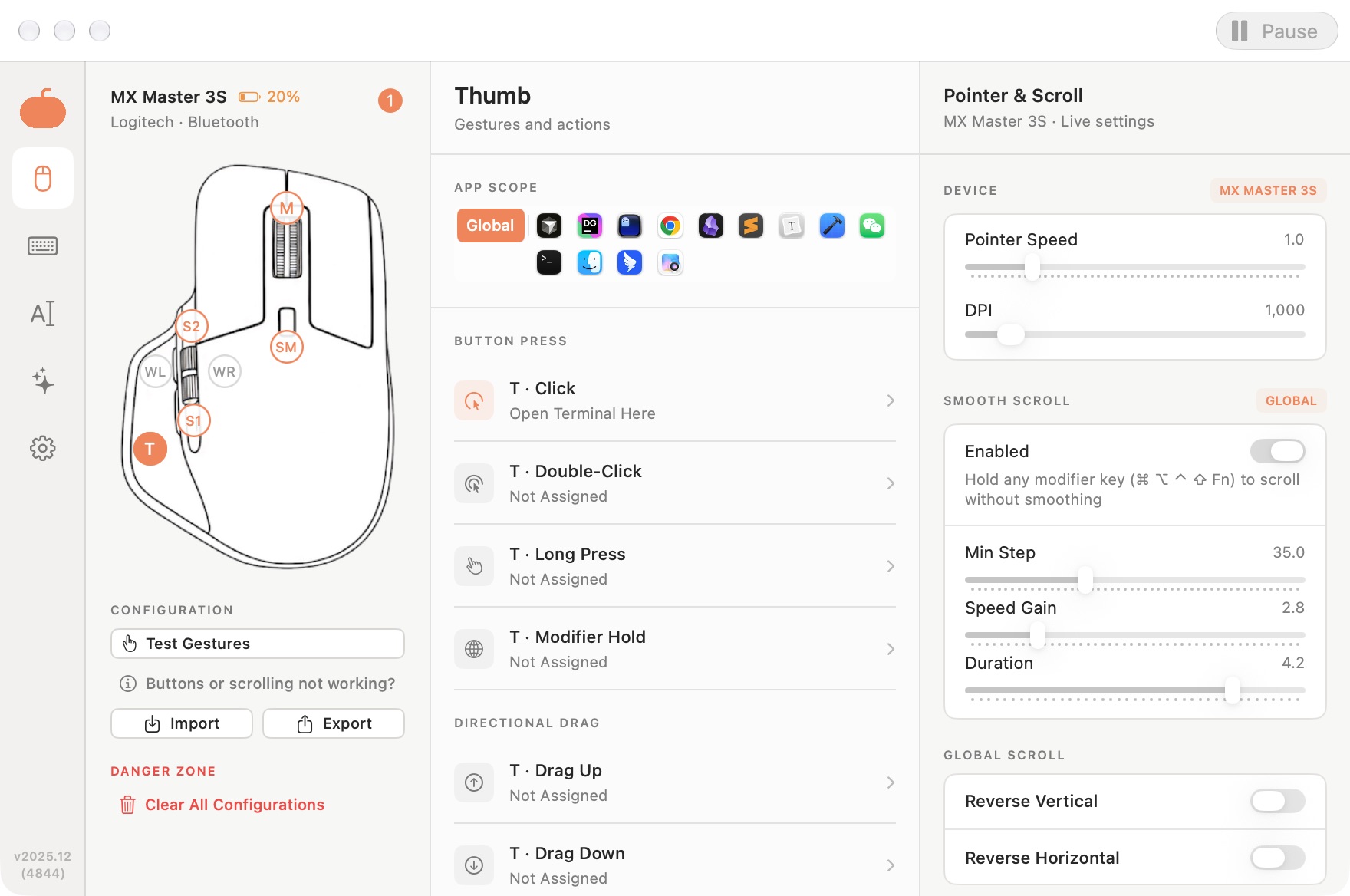
Click a marker on the mouse illustration to see that button's click, double-click, long-press, and directional-drag mappings. The app scope above the list lets you move between your global mappings and app-specific overrides.
The right column keeps Pointer Speed, available hardware DPI controls, and Smooth Scroll settings visible. Hardware controls depend on the connected model. The scrolling curve still uses the three global controls Min Step, Speed Gain, and Duration; per-app smoothing remains an on/off override.
For a setup recipe, see button mapping and device compatibility.
Keyboard shortcuts have a clearer library
The keyboard page groups mappings into Media & System, Apps & Content, and Automation, alongside an All Shortcuts view. Each row shows the action and its assigned shortcut, while the inspector keeps shortcut readiness and permissions nearby.
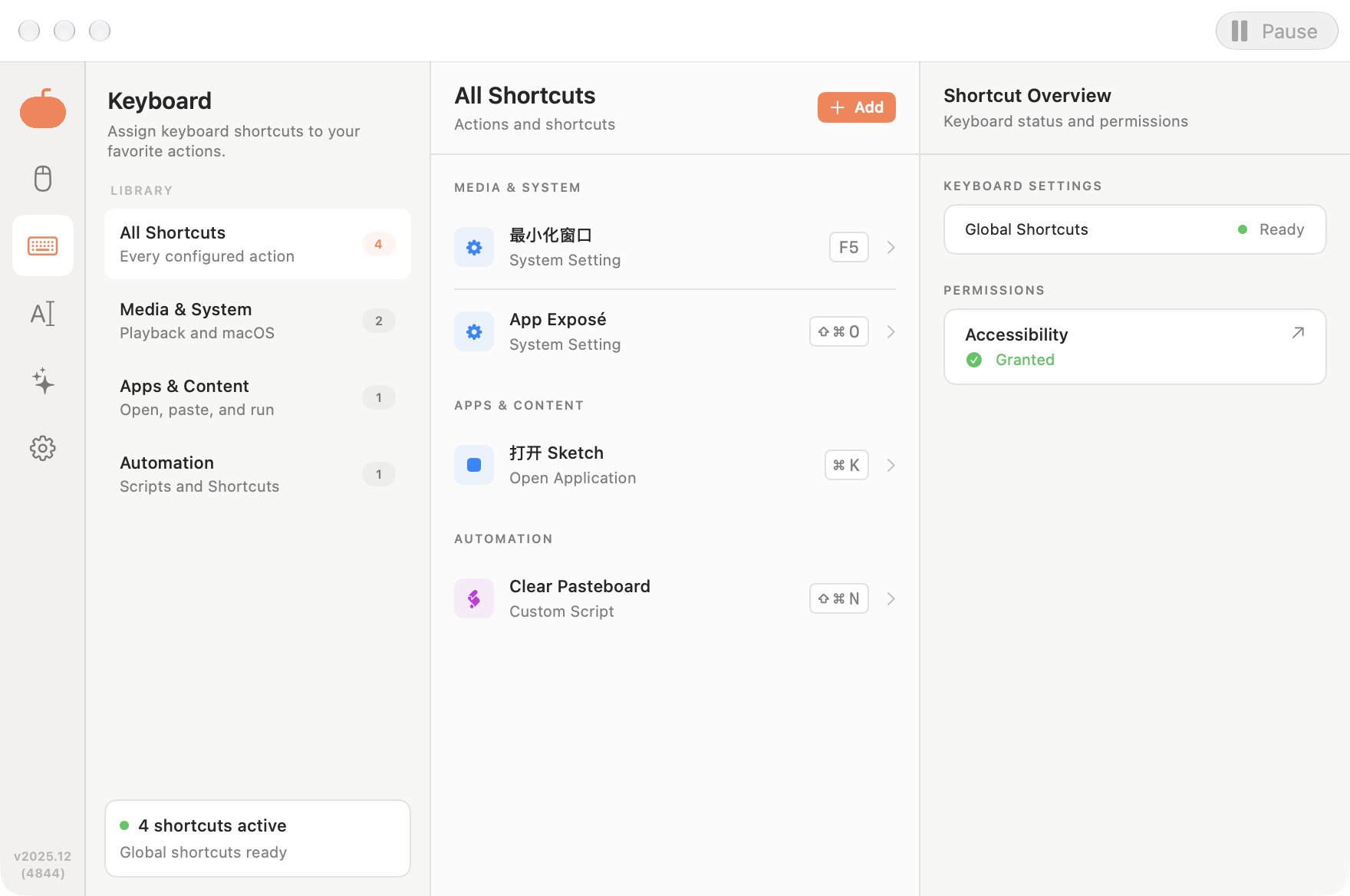
Input Sources has a separate sidebar entry for app and website rules. You can move directly to the part of LinguaX you need, whether you are tuning a mouse button, checking a shortcut, or changing an input-source rule.
Meet AIx: actions for the text you are working with
AIx brings six built-in actions to selected text in supported apps:
| Action | What it is for |
|---|---|
| Polish | Improve flow and wording while keeping your tone |
| Proofread | Fix grammar, spelling, and punctuation |
| Simplify | Make dense text easier to read |
| Expand | Add explanation and structure to a short draft |
| Translate | Translate into a chosen language |
| Summarize | Condense a passage into its key points |
For example, select a paragraph you are reading and choose Translate, or select a rough reply and choose Polish. A floating result window lets you review the output, edit it after generation finishes, and copy it when it is ready. The window can be moved and resized for longer passages.
Selection access depends on the app and its permissions. AIx reads through Accessibility or authorized browser access; it does not rely on clipboard history. Text is sent only when you run an action.
Keep your common actions close
The Actions page puts built-in and custom actions in one list. Pin the ones you use most and arrange their order in the quick-action menu.
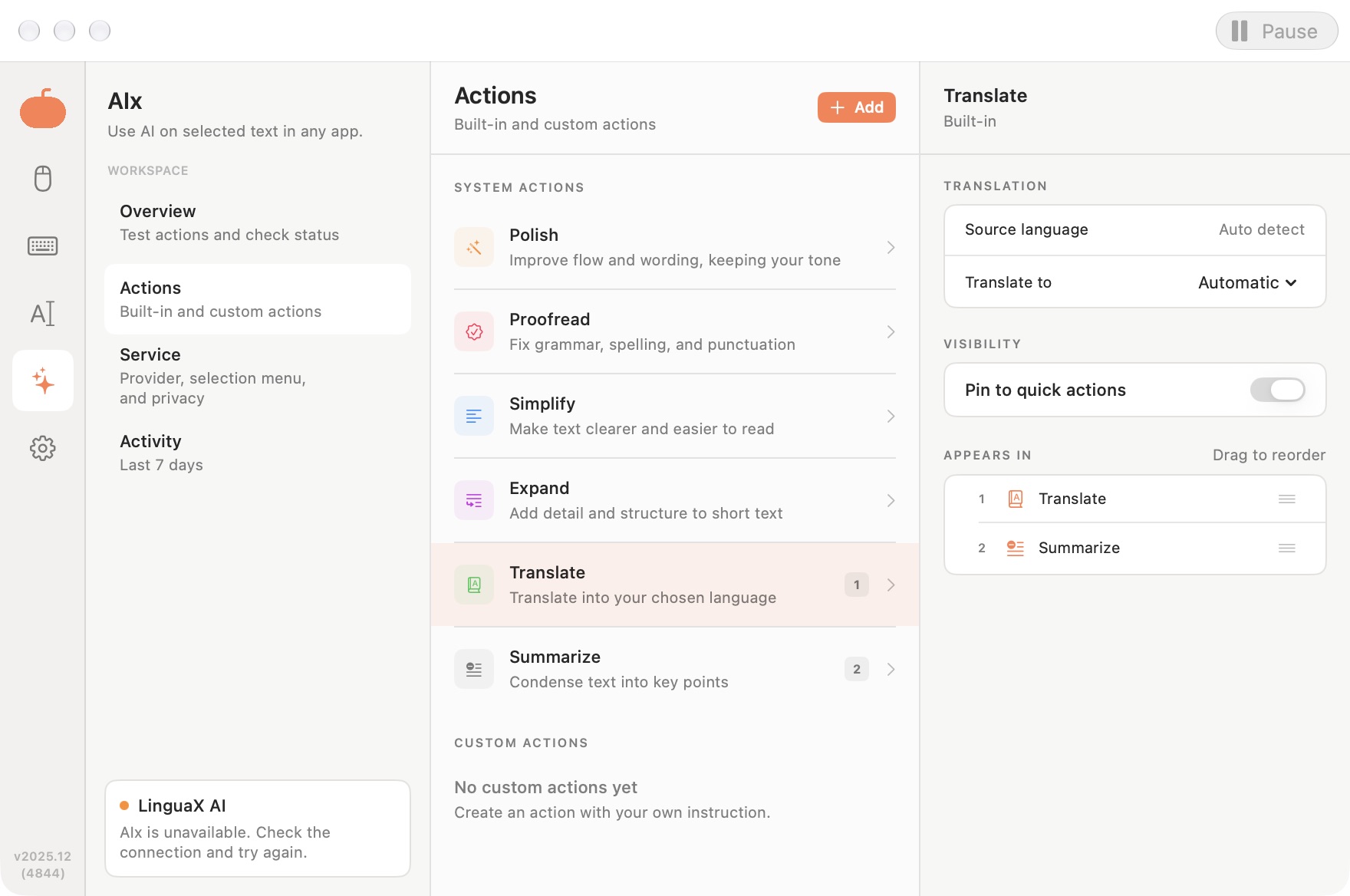
For translation, Automatic uses your language preferences to choose a target different from the source. You can also set a specific target language, and choose an output language for summaries.
Custom actions let you save an instruction you would otherwise type repeatedly. An action such as “Extract decisions and next steps” can ask for a short list of decisions, owners, and follow-ups, with missing information left unspecified. Pin it beside the built-in actions for repeated use.
The Overview page includes Quick Test: enter a short sample, choose an action, and review the result before trying it from another app. Test input is limited to 20,000 characters, and Quick Test does not save the test text.
Choose a service and review data use
In AIx → Service, choose between LinguaX AI and Your API. LinguaX AI uses points. Your API sends requests directly to your configured compatible endpoint and does not use LinguaX points; its API key is stored in macOS Keychain. AIx requires an active LinguaX license, and AI usage should be considered separately from the app license.
Before the first request, review the destination and allow text transfer. You can also control the selection menu and exclude apps where you do not want it to appear.
Activity keeps seven days of action metadata on your Mac, without storing input or result text in that log. The AIx service addendum explains the service terms and data handling.
Try the beta
Open the download page and choose Download Beta to try the new UI and AIx. Start with a familiar mouse mapping, then open AIx → Service to configure a service and Overview to test a short, non-sensitive sample.
The screenshots above show the beta interface; they illustrate the controls rather than a completed AI request. AI generation needs a working service connection.
We would like to hear which text actions you reach for, which parts of the new layout help, and where setup still takes too much work. You can send feedback to hello@linguax.app.