Conflicts with Other Tools
Running LinguaX alongside other mouse utilities or input automation tools can cause conflicting behavior. Because several tools can all intercept the same low-level mouse and keyboard events, only one should own each responsibility.
Mouse tool conflicts
Tools like Logi Options+, Mos, LinearMouse, BetterMouse, and Mac Mouse Fix also hook into scrolling, button mapping, and pointer behavior. Running them at the same time as LinguaX can produce:
- scrolling that double-smooths, stutters, or feels inverted
- side-button or gesture actions firing twice, or one tool overriding the other
- pointer speed that fights between two tools
- a button that works in one app but not another, because another tool claims it first
Isolation test (mouse)
- Quit other mouse utilities (including ones running only in the menu bar or as login items).
- Keep only LinguaX running.
- Test smooth scrolling, one side-button mapping, and one gesture.
If behavior stabilizes, a mouse-tool conflict is likely.
Mitigation (mouse)
- Choose one tool as the source of truth for each responsibility:
- smooth scrolling owned by one tool only
- button/gesture mapping owned by one tool only
- pointer speed owned by one tool only
- In the other tool, disable the overlapping feature rather than the whole app, if you still need its other features.
- Avoid mapping the same button to actions in two tools at once.
Resolve mouse-utility conflicts on macOS (Options+, Mac Mouse Fix, …)
When two mouse utilities intercept the same events, only one can own each event stream. Two ways to enforce that, in order of reversibility:
Option A — Revoke Input Monitoring from the other tool (reversible)
Fastest fix, undo in one click if you change your mind.
-
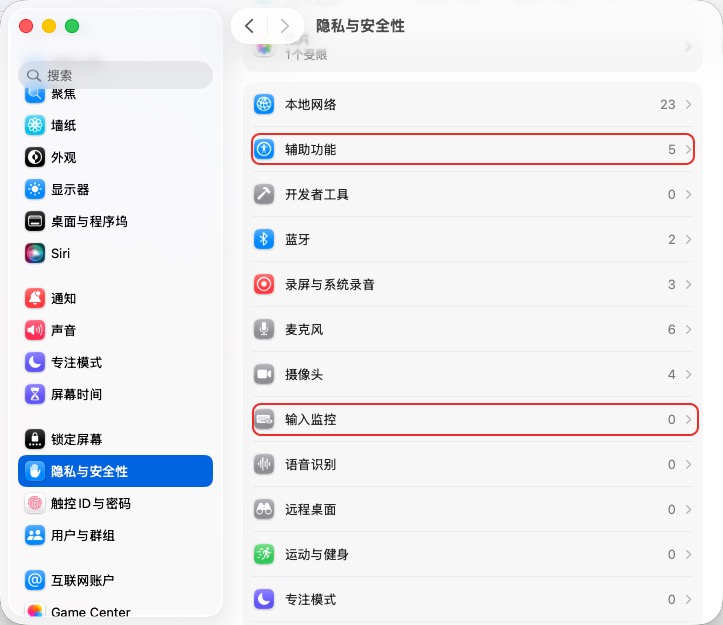
Open System Settings → Privacy & Security → Input Monitoring (repeat for Accessibility).
-
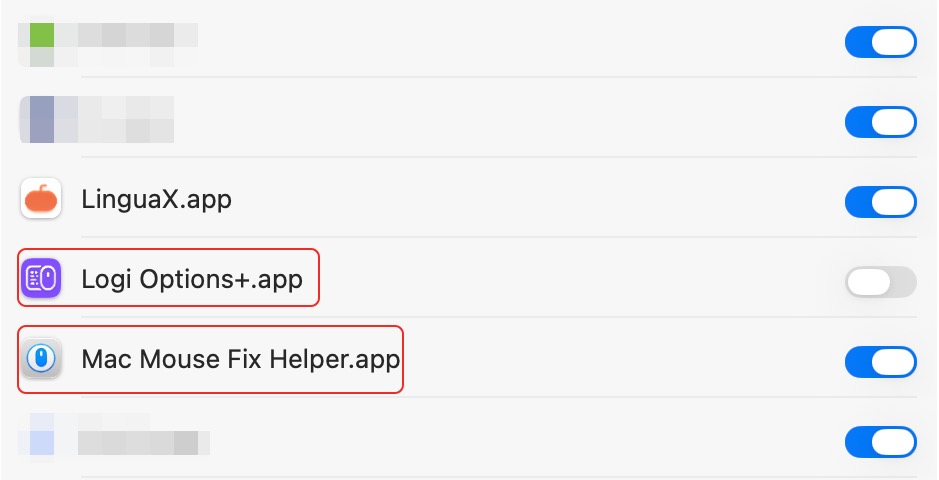
Turn OFF the toggle next to the other tool. Keep LinguaX ON.
-
Verify: LinguaX → Diagnostics Center → Realtime Events → press the side button → the event should flow in.
Trade-off: hardware-level settings the other tool wrote to the device (Options+ SmartShift, DPI, backlight) persist even after Input Monitoring is revoked — those aren't tied to system permissions. LinguaX has its own pointer-speed and DPI controls that cover the same ground natively — see MX Master 3S setup without Logi Options+.
Option B — Uninstall the other tool (clean slate)
If you don't rely on any of the other tool's remaining features, uninstall is the cleanest fix — nothing to flip back on the next macOS update.
- Logi Options+: use the app's built-in uninstaller, then remove any leftover LaunchAgents at
~/Library/LaunchAgents/com.logi.optionsplus.*. Full step-by-step in the migration guide. - Mac Mouse Fix: run Uninstall from the app's menu.
- Others: consult the vendor's uninstall docs.
Verify with the same Diagnostics Center step as Option A.
Which one should I use?
- Revoke permission — you still want the other tool for something specific (device-level DPI/SmartShift, Options+ Flow, KVM keyboard sharing).
- Uninstall — LinguaX now covers everything you were using the other tool for; you want a permanent clean state.
Input method tool conflicts
Running multiple input automation tools (other IME switchers or input automation utilities) can cause:
- input source flips unexpectedly
- rules feel delayed or inconsistent
- behavior differs by app without clear logic
Isolation test (input)
- Quit other IME/automation tools.
- Keep only LinguaX running.
- Test one app rule and one browser domain rule.
If behavior stabilizes, an input-tool conflict is likely.
Mitigation (input)
- Choose one tool as the source of truth for input switching.
- Disable overlapping automation in other tools.
- Avoid duplicate rules across tools.
Recovery sequence
This order works for both mouse and input conflicts:
- Simplify LinguaX to a minimal baseline (one mapping, or one app/domain rule).
- Confirm the baseline is stable on its own.
- Re-enable other tools one by one.
- Stop when the conflict reappears, and narrow that tool's scope (disable just the overlapping feature).