App-Scoped Overrides
One mouse setup rarely fits every app. Smooth scrolling that feels right in a browser can feel wrong in Xcode; a gesture you want in your editor may not belong everywhere. App-scoped overrides let specific apps keep their own behavior while a clean global baseline covers everything else.
What you can override per app
- Smooth scrolling on/off — toggle smooth scrolling per app. The three feel parameters (Min Step, Speed Gain, Duration) and the reverse-direction switches stay global; only the on/off state is app-specific.
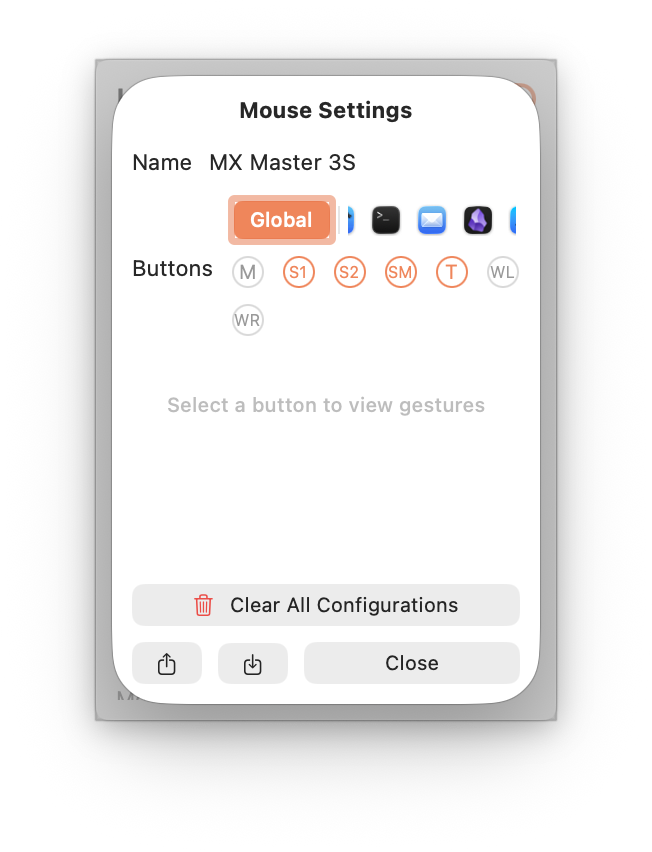
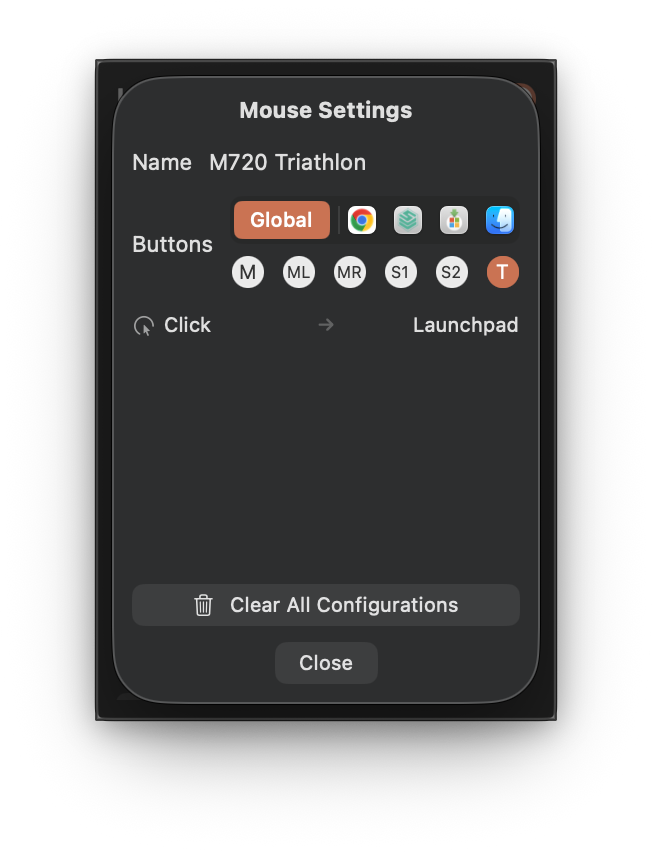
- Gestures — configure click, long-press, and directional drag actions for specific apps independently from global settings.
Other settings — the smooth-scroll feel parameters, reverse direction, pointer speed, and button mappings — are global and apply the same way across every app.
Configuration steps
- Open the app scope switcher in Mouse+.
- Pick the app you want to customize. The running-apps list refreshes automatically as apps launch or quit, so the target is easy to find.
- Toggle smooth scrolling or set the gesture behavior for that app.
- Leave other apps untouched — they keep following the global defaults.
Keep overrides minimal: add one only where the global behavior genuinely falls short. A small set of overrides on top of a solid baseline is easier to reason about than many competing rules. For how overrides resolve against global settings, see Rules and Priority.