MX Ergo on Mac — Trackball Side-Button Setup with LinguaX
The MX Ergo is one of the few trackballs still in active production — and because your hand never leaves the ball, push-to-talk on a trackball side button feels closer to a headset-mounted PTT switch than any regular mouse can manage. LinguaX gives you side-button and wheel-click mapping through its universal HID engine, without Logi Options+ installed.
The MX Ergo is not yet on the LinguaX model recognition list. That means:
- Working today: click-based mapping on the two side buttons and the wheel click (via LinguaX's universal HID engine — the same engine that works on any brand of mouse).
- Rolling out later: deeper HID++ 2.0 features that require model recognition — richer gesture types (long-press / directional swipe), battery reading, the Precision (DPI) button as a re-mappable slot.
Track roadmap progress in the Changelog.
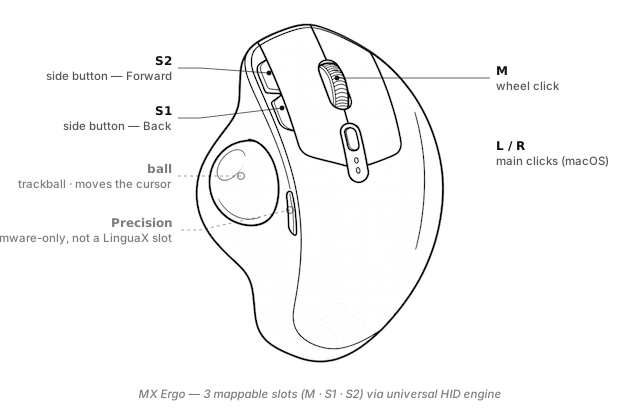
What you can actually map on the MX Ergo today
Through LinguaX's universal HID engine (no model-specific recognition required):
S1/S2(side buttons) — the two thumb-side buttons (default Back / Forward). Click-based mapping to any macOS shortcut or action.M(wheel click) — the middle button.
The Precision button next to the ball is currently handled by the mouse firmware for DPI switching and is not yet exposed to LinguaX. The physical tilt adjustment (0° or 20°) is hardware-only.
Named-slot vocabulary: Button & Side-Button Mapping.
Why push-to-talk on a trackball is uniquely good
On a standard mouse, PTT means moving your hand a bit — your fingers stay on the mouse but your wrist shifts. On a trackball, your hand doesn't need to shift at all. You can dictate a long paragraph while your thumb rests on S2, and go back to fine cursor control the moment you release.
That means the MX Ergo pairs unusually well with voice-first workflows:
- Long-form writing where you speak most and type corrections
- Code review where you speak comments and only type occasionally
- Emails / Slack where dictation is faster than typing
- Meetings on Zoom where mouse PTT saves you from reaching for the space bar
More on the workflow: Push-to-Talk Voice Typing on Mac with a Mouse Button. Comparing voice tools: Best Push-to-Talk Apps for Mac (2026).
Three ready-to-copy setups
1. Push-to-talk on S2 (the trackball killer app)
Since click-based mapping works today on any side button:
S2 click→ Toggle your voice tool's dictation session (press once to start, again to stop)- Or use a global voice tool that has its own hold-to-talk key — bind that key to
S2 clickand press once to start, press again to end
Your thumb rests near the button while you speak, taps once to release. No hand travel.
2. Screenshot on S1 (or wheel click)
The MX Ergo's compact layout means you're often mid-drag when you need a screenshot:
M click(wheel click) →⌘ ⇧ 4(macOS area screenshot)
Wheel click on a trackball is easy to hit without disturbing the ball position.
3. Space-switching alternative
On trackballs, keyboard ⌃ ← / ⌃ → is often the fastest — but if you'd rather stay on the ball:
S1 click→ keep default BackS2 click→⌃ →(next Space, replaces Forward)
Trade-off: you lose Forward navigation, gain one-thumb Space cycling.
Setup in three minutes
- Install LinguaX from Installation.
- Pair the MX Ergo. Bluetooth for a single Mac; if your unit came with a Unifying receiver, that also works. Never paired the receiver before? Our in-browser pairing tool can pair or unpair without Options+.
- Open Mouse+. LinguaX detects the MX Ergo as a generic HID mouse; assign click-based actions to S1 / S2 / M.
- Apply push-to-talk first. It is the recipe that most changes how a trackball feels on a modern Mac.
The First Run guide covers macOS permission prompts.
MX Ergo vs a regular mouse for productivity
| Regular mouse | MX Ergo (trackball) | |
|---|---|---|
| Hand travel per click | Small | None |
| Push-to-talk feel | Reach + release | Rest thumb + release |
| Wrist load | Moderate | Very low |
| Learning curve | None | ~2 days |
| Space required on desk | Cursor travel area | Just the trackball footprint |
| Precision cursor work | Faster | Slower (compensated by DPI toggle) |
If your Mac work is 60%+ writing / voice / reading, the MX Ergo with LinguaX PTT is worth trying. If it's 60%+ pixel-precise design / gaming, a regular mouse is usually still faster.
Compatibility notes
- Bluetooth + Unifying receiver — both work with LinguaX's universal HID engine.
- Two Easy-Switch hosts — supported by the mouse firmware.
- Precision (DPI) button — currently firmware-handled; will become re-mappable when the MX Ergo joins the model recognition list.
- Battery — reported by macOS Bluetooth for the Bluetooth connection; deeper HID++ battery reading comes with recognition.
- Physical tilt — 0° / 20° hardware only; no software involvement.
- Sleep / wake — auto-recovers.
FAQ
Does the MX Ergo work on Mac without Logi Options+? Yes — LinguaX's universal HID engine handles side-button and wheel-click click-mapping. No Options+ needed.
What makes push-to-talk so good on a trackball? Your hand never leaves the ball. Dictate long passages without any hand travel — closer to a headset PTT switch than any regular mouse.
What about the Precision (DPI) button next to the ball? Currently firmware-handled for DPI switching. Not yet a LinguaX slot — coming with model recognition (see the roadmap tip above).
Left- or right-handed? The MX Ergo is right-hand only. Left-handers may prefer the Kensington SlimBlade or ExpertMouse.
Get started
LinguaX is a free download with a 30-day trial — no account, no telemetry. If it fits, it is a $9.9 one-time purchase covering 3 devices (no subscription).
Download LinguaX and set up your MX Ergo free for 30 days.
Related pages
- Push-to-Talk Voice Typing on Mac — the killer app for trackballs.
- Best Push-to-Talk Apps for Mac (2026) — pick a voice tool to pair with the S2 PTT recipe.
- Logi Lift — vertical mouse alternative if the trackball learning curve is too much.
- MX Master 3S — traditional mouse with more slots for non-voice workflows.
- All models: Compatible Mouse Models overview.