MX Master 3S on Mac — Full Control with LinguaX
The MX Master 3S has seven mappable inputs — Side 1, Side 2, Wheel Tilt Left, Wheel Tilt Right, the Thumb button, the Scroll Mode key, and the Wheel click. On macOS, Logi Options+ gives you a shallow subset of that surface. LinguaX gives you all of it, plus per-app overrides, gesture-based Spaces switching, and push-to-talk on the Thumb button.
What you can actually map on the MX Master 3S
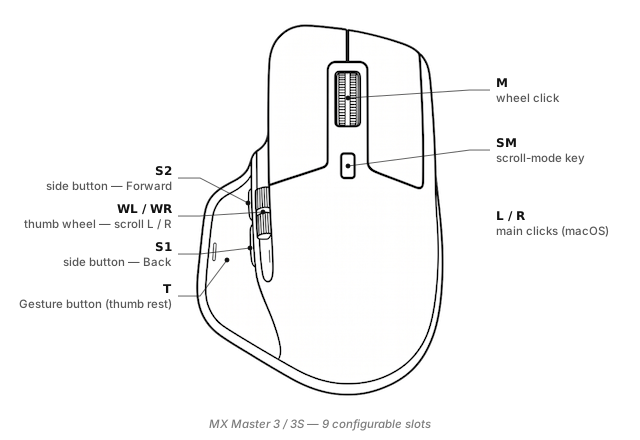
LinguaX exposes every input on the 3S as a named slot, so recipes work the same across devices in the same family. On this mouse you get:
- Side 1 / Side 2 — the two thumb-side buttons. Default is Back / Forward. Bind them to anything a keyboard shortcut can reach.
- T (Thumb button) — the flat button behind the thumb rest, called "Gesture button" in Logitech marketing. Supports click, double-click, long-press, and four-directional swipe.
- WL / WR (Wheel Tilt Left / Right) — press the scroll wheel sideways. macOS only reads these as horizontal scroll; LinguaX reads them as discrete buttons with their own gestures.
- SM (Scroll Mode) — the small button behind the wheel that switches between ratchet and free-spin MagSpeed modes. LinguaX lets that button carry a second action while still toggling wheel mode.
- Wheel click — the middle button. Most people leave this alone; you can bind gestures to it too.
Every one of those slots supports multiple gesture types (click / double-click / long-press / directional swipe), so a single physical button can hold three or four distinct actions without becoming ambiguous. That's covered in depth in Gesture Mapping.
What Options+ can't do here
If you've only used Logi Options+ on macOS, the gap is roughly:
- Push-to-talk. Options+ has no concept of "hold to speak, release to stop." LinguaX's long-press gesture on the Thumb button is a full physical PTT switch for Superwhisper, Wispr Flow, Zoom, Discord, or the built-in macOS dictation.
- Directional swipe gestures. Options+ can fire a shortcut on button press. It can't fire different shortcuts depending on which way you swipe the button. LinguaX turns swipe-left / swipe-right / swipe-up / swipe-down on the Thumb button into four independent actions with an on-screen indicator.
- Per-app overrides that actually stick. Options+ requires the target app to be actively supported; LinguaX applies overrides by bundle ID, so a mapping like "in Zoom, Thumb = mute" works whether Zoom is officially recognised or not. See App-scoped Overrides.
- Modifier-hold on a mouse button. LinguaX can treat Side 1 as "held Cmd" while pressed, so Cmd+click flows work one-handed.
- No account, no background service. Options+ pesters you to sign in and runs an Electron process constantly. LinguaX is ~10 MB, native, and stores no cloud state.
For a broader comparison see Logi Options+ Alternative for macOS.
Three ready-to-copy setups
1. Push-to-talk on the Thumb button
The Thumb button on the 3S sits exactly where a mechanical PTT switch would go on a headset. The long-press gesture with a 200 ms threshold turns it into one:
- In Mouse+, pick your MX Master 3S from the device list
- Assign
T long-press→ Hold the keyboard shortcut your voice tool uses (Superwhisper's default isFn; Wispr Flow uses⌥; Zoom's PTT isSpacewhen muted) - Optionally assign
T clickto a short "quick capture" note action so a single tap does something too
Full setup with app choices is in Push-to-Talk on Mac Without a Keyboard.
2. Switch macOS Spaces with a side-button swipe
The MX Master 3S sits at the perfect angle for horizontal thumb swipes. Bind swipe gestures on Side 1 to Mission Control's Space navigation:
Side 1 swipe-left→⌃ ←(Space left)Side 1 swipe-right→⌃ →(Space right)Side 1 click→ Back (keep the default click action so you don't lose Back navigation)
Now you're switching between four Spaces with a flick of the thumb, without ever leaving the mouse for the trackpad.
3. App-scoped input source switching
If you write in multiple languages and hate remembering which input source is active, bind WL and WR (Wheel Tilt) to switch input sources, then scope it per app:
- Global:
WL→ English input source;WR→ your other input source - In Slack / Messages / any chat app:
WL→ English;WR→ primary chat language - In your code editor:
WLandWRdo nothing (avoid accidental toggles while horizontal-scrolling in wide tables)
Full walkthrough: Auto-switch input source by app or domain on Mac.
Setup in three minutes
- Install LinguaX. Download the ~10 MB build from Installation and drag it to Applications.
- Connect the MX Master 3S. Either pair over Bluetooth in System Settings, or plug in a Bolt receiver. New Bolt receiver? Use the in-browser pairing tool — no Options+ install required.
- Open Mouse+. LinguaX picks up the 3S automatically and shows its named slots.
- Apply a recipe. Start with one of the three above; refine over the next few sessions.
The first-run walkthrough in First Run covers the accessibility permission prompts macOS shows the first time.
Compatibility notes
- Firmware: LinguaX reads HID++ 2.0 from any 3S firmware version Logitech has shipped.
- Battery reading: Shown in the tray for both Bluetooth and Bolt connections.
- Sleep / wake: The 3S reconnects automatically after macOS sleep; LinguaX re-applies mappings without a manual reload.
- Multiple Macs: The 3S's Easy-Switch button lets you toggle between three paired hosts; LinguaX keeps a separate profile per host.
FAQ
Does the MX Master 3S work on macOS without Logi Options+? Yes. macOS recognises the 3S as a standard HID mouse out of the box for movement and clicking. LinguaX adds proper side-button, Thumb-button, and Scroll Mode support without any Logitech account or background service.
Can I run LinguaX alongside Logi Options+ on the same Mac? Yes, but assign each button in only one tool. If both bind the same input, whichever loads last wins and behaviour becomes unpredictable. Most 3S owners on macOS uninstall Options+ once LinguaX is doing the mapping.
Bluetooth or Bolt receiver — which is better on Mac? For a single Mac, Bluetooth is simpler. If you switch between multiple computers or want cleaner sleep/wake recovery, the Bolt receiver is more predictable. LinguaX supports full HID++ over both.
How many devices can I pair to one Bolt receiver? Six slots per receiver. Hit the limit and you'll need to unpair an unused device — LinguaX's in-browser pairing tool can unpair as well as pair, no Logitech software required.
Get started
LinguaX is a free download with a 30-day trial — no account, no telemetry. If it fits, it is a $9.9 one-time purchase covering 3 devices (no subscription).
Download LinguaX and set up your MX Master 3S free for 30 days.
Related pages
- Already running Logi Options+? See the MX Master 3S migration guide for how to uninstall cleanly and move mappings across.
- New to side-button mapping? Read How to Map Mouse Side Buttons on macOS for a brand-agnostic walkthrough of the gesture set and per-app overrides.
- MX Master 3 — the previous-generation model. Same button layout; slightly louder wheel and no 8000-DPI tracking.
- MX Anywhere 3S — smaller sibling for travel. Fewer buttons, but the Thumb-slot recipes above still apply.
- Logi Lift — ergonomic vertical option that shares LinguaX's Thumb and Side handling.
- All supported models: Compatible Models overview.