MX Master 3 on Mac — Every Button, Same as the 3S
If you already own an MX Master 3, there is no functional reason to upgrade to the 3S for software reasons. Every button, every gesture type, and every per-app override LinguaX offers on the 3S works identically on the 3 — same named slots, same recipes, same HID++ 2.0 recognition. This guide walks through what you can map, three ready-to-copy setups, and how the 3 compares to the 3S if you were tempted.
What you can actually map on the MX Master 3
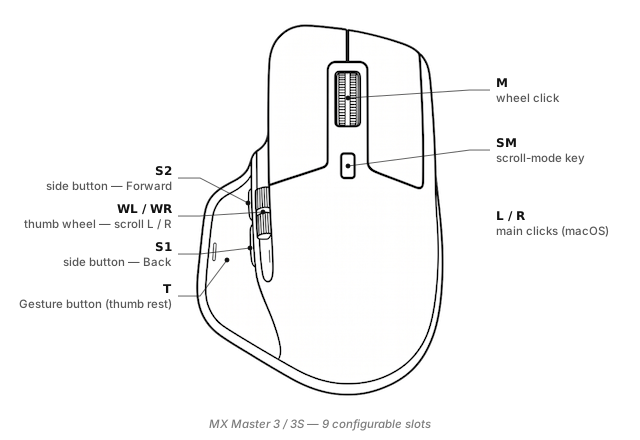
The MX Master 3 has seven mappable inputs, all exposed as named slots in LinguaX:
- Side 1 / Side 2 — the two thumb-side buttons (default Back / Forward). Any keyboard shortcut, any macOS action, any of four gesture types (click / double-click / long-press / directional swipe).
- T (Thumb button) — the flat button behind the thumb rest. Long-press works because the 3 is recognised via Logitech HID++.
- WL / WR (Wheel Tilt Left / Right) — the wheel presses sideways. macOS only reads these as horizontal-scroll ticks; LinguaX treats them as discrete buttons with their own gesture layer.
- SM (Scroll Mode) — the small button behind the wheel that toggles MagSpeed between ratchet and free-spin. LinguaX lets it carry a second action while still toggling wheel mode.
- Wheel click — the middle button.
Full slot vocabulary is documented in Button & Side-Button Mapping; gesture-type semantics are in Gesture Mapping.
What Options+ can't do on the MX Master 3
- Push-to-talk on the Thumb button. Long-press with a 200 ms threshold turns T into a full physical PTT switch for voice tools.
- Four-direction swipe. Options+ fires on press; LinguaX distinguishes swipe-left / -right / -up / -down as four independent actions with an on-screen indicator.
- Per-app overrides by bundle ID. Same button, different action in Zoom vs Terminal vs your browser. See App-Scoped Overrides.
- Modifier-hold. Treat Side 1 as "held Cmd" while pressed for one-handed Cmd+click flows.
- No sign-in, no cloud sync, no background Electron. LinguaX is ~10 MB native.
For a full comparison see Logi Options+ Alternative for macOS.
Three ready-to-copy setups
1. Push-to-talk on the Thumb button
Bind T long-press → Hold the shortcut your voice tool uses (Superwhisper Fn, Wispr Flow ⌥, Zoom PTT Space). Optionally give T click a lightweight "quick note" action. Details: Push-to-Talk on Mac with a Mouse Button.
2. Switch macOS Spaces with a side-button swipe
Side 1 swipe-left→⌃ ←Side 1 swipe-right→⌃ →Side 1 click→ keeps its default Back action
Four Spaces reachable with a thumb flick, no reach to the trackpad.
3. App-scoped input-source switching
- Global:
WL→ English input,WR→ your second input - In Slack:
WL→ English,WR→ your primary chat language - In your editor:
WLandWRdo nothing (avoid triggering on horizontal scroll)
Recipe details: Auto-switch input source by app or domain on Mac.
Setup in three minutes
- Install LinguaX. Download from Installation, drag to Applications.
- Connect the MX Master 3. Bluetooth pairs in System Settings; the bundled receiver works out of the box. If your unit came with a Unifying receiver and you want to move to Bolt, our in-browser pairing tool can pair either without Options+ installed.
- Open Mouse+. LinguaX picks up the MX Master 3 automatically via VID:PID + HID++ probing.
- Apply a recipe. Start with one of the three above.
The First Run guide covers accessibility-permission prompts.
MX Master 3 vs MX Master 3S — is upgrading worth it?
Software-wise, no — both models expose the same seven named slots to LinguaX. Hardware differences:
| MX Master 3 | MX Master 3S | |
|---|---|---|
| Wheel noise | Audible click on scroll | Silent |
| Max DPI | 4000 | 8000 |
| Tracking on glass | No | Yes (4 mm min glass thickness) |
| Weight | 141 g | 141 g |
| Bundled receiver | Unifying (older stock) or Bolt | Bolt |
If you already own the 3 and are considering the 3S for software reasons, keep the 3 — LinguaX gives you the same capabilities. Upgrade if the silent wheel or high-DPI tracking materially matters for your workflow.
Compatibility notes
- HID++ 2.0 — full profile support (thumb-button long-press, per-app overrides, battery reading).
- Battery display — shown in the tray for both Bluetooth and receiver connections.
- Sleep / wake — auto-recovers; LinguaX re-applies mappings without user action.
- Multiple Macs — the Easy-Switch button toggles three paired hosts; LinguaX keeps a separate profile per host.
FAQ
Do I need to upgrade to the MX Master 3S to get full LinguaX support? No. The MX Master 3 is on the recognition list with full HID++ 2.0. Every button, gesture type, and per-app override works identically to the 3S.
Does the MX Master 3 work on Mac without Logi Options+? Yes — macOS pairs it as a standard HID mouse; LinguaX adds the deeper features. No Logitech account, no background telemetry.
How does the 3 differ from the 3S for mapping purposes? Identical named slots (Side 1, Side 2, T, SM, WL, WR, Wheel click). Recipes transfer 1:1 between the two models.
Bluetooth or Unifying / Bolt receiver? Bluetooth is simplest for a single Mac. If you switch between hosts or want cleaner sleep/wake recovery, use the receiver. LinguaX supports full HID++ over both.
Get started
LinguaX is a free download with a 30-day trial — no account, no telemetry. If it fits, it is a $9.9 one-time purchase covering 3 devices (no subscription).
Download LinguaX and set up your MX Master 3 free for 30 days.
Related pages
- On Options+ already? MX Master 3S: Migrate from Logi Options+ — steps apply almost verbatim to the 3.
- MX Master 3S — the newer sibling; identical mapping surface.
- MX Anywhere 3 — smaller sibling for travel; shares the Thumb-slot recipes.
- All models: Compatible Mouse Models overview.