How to Map Mouse Side Buttons on Mac (Any Brand, 2026)
If your mouse's side buttons do nothing on macOS — or fire a fixed action you cannot change — this guide walks through how to remap mouse buttons on Mac for any brand, without a kernel driver or vendor account. Bind side buttons, the thumb button, and wheel tilt to browser back/forward, Mission Control, media controls, or any keyboard shortcut, with per-app overrides so behavior can differ between the browser and your editor. LinguaX is a native, ~10MB mouse utility that recognizes common models (MX Master, MX Anywhere, G502 X, M720, M585, and more) and still works with unrecognized mice.
What you can map in LinguaX
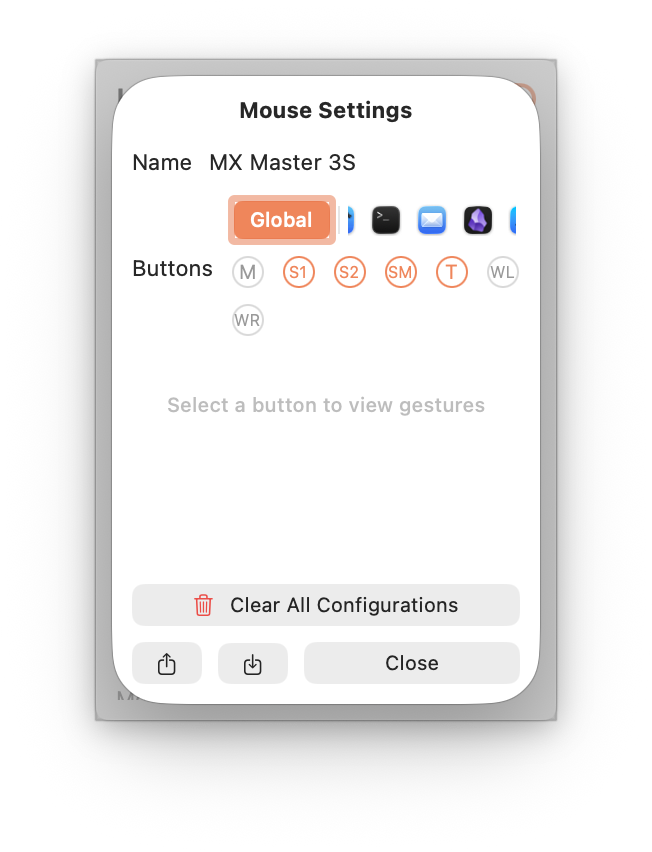
- the Side buttons (Side 1–4) and the Thumb button on supported models
- wheel tilt left/right (the
WL/WRslots) where the device supports it — these trigger horizontal scroll and only support a click action - per-button gestures: click, double-click, long-press, and directional drag/swipe (up/down/left/right)
- a focused action set you can bind to a mouse button: System Setting presets (Mission Control, Switch Space, and more), Media Control, Keyboard Shortcut, Modifier Hold, and Open Application
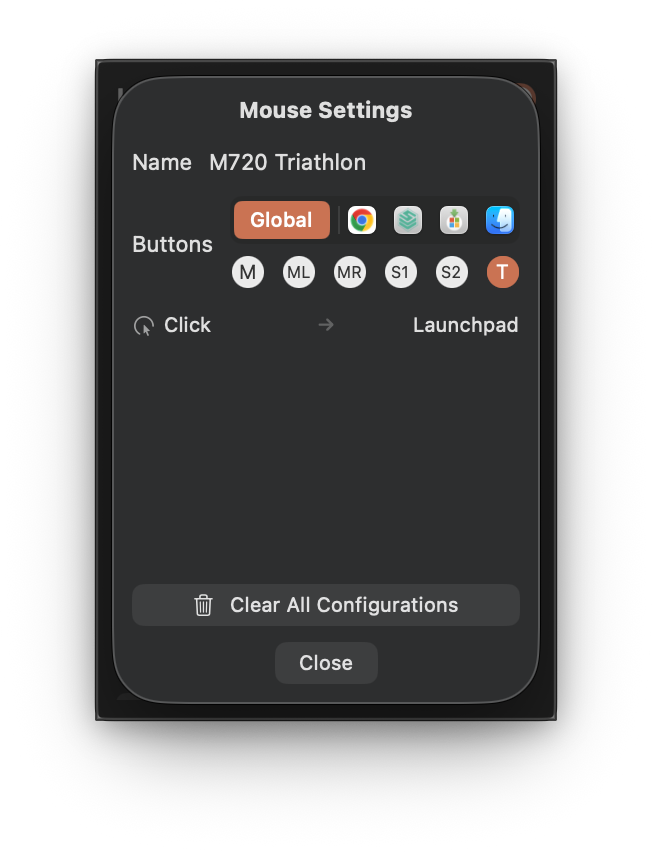
LinguaX recognizes many models automatically (MX Master, MX Anywhere, G502 X, M720, M585, and more) and applies sensible default mappings, while still working with unrecognized mice. Note: long-press on the thumb button is only available on Logitech models reached over the HID++ path; click/double-click/drag gestures work more broadly.
Setup steps
- Install LinguaX and grant Accessibility permission.
- Open Mouse+ and select the button you want to map.
- Pick a gesture (start with a simple click) and assign an action.
- Save, then use it for a full work session before adding more.
Recommended setup order
- Pick one high-value action first (back, Mission Control, or an app shortcut).
- Map it to one side button and live with it for a session.
- Add a second mapping only once the first feels natural.
Side-button swipe is powerful: one button can hold up to four directional actions, with an on-screen mode indicator while you drag.
Keep mappings stable
- avoid piling too many actions onto one button
- avoid overlapping mappings across multiple tools
- use per-app overrides only where global behavior is not enough
Each connected mouse keeps fully isolated button state, so a second mouse will not inherit or conflict with the first one's mappings.
Good first mappings
- Browser Back / Forward
- Mission Control or Switch Space
- Open launcher / quick command
- A repeated shortcut for your editor or design tool
Troubleshooting quick checks
- confirm Accessibility permission is granted
- verify no duplicate mapping in another utility
- test one button with one gesture first
Frequently asked questions
Can I remap mouse side buttons on any mouse on macOS?
Yes. LinguaX works with any USB or Bluetooth mouse — no driver required. Recognized Logitech models (MX Master series, MX Anywhere, G502 X, M720, M585, and more) additionally get automatic default mappings; unrecognized mice can be mapped manually button-by-button.
Why don't my mouse side buttons work by default on macOS?
macOS ships no built-in UI for extra mouse buttons beyond left/right click and scroll. Vendor apps (Logi Options+, Razer Synapse) fill that gap for their own brand but often need an account or ship a heavy background agent. A native tool like LinguaX handles the mapping at the system-input level without either.
Do I need Logi Options+ to remap MX Master side buttons?
No. LinguaX communicates with MX Master 2S/3/3S over BLE HID++ directly and can map every button, including the thumb button and gestures like long-press or directional swipe. See MX Master 3S Mac Setup Without Logi Options.
Can I long-press a mouse button on Mac?
Yes for the side buttons across most mice; the thumb button long-press is available specifically on Logitech models reached over the HID++ path. Click, double-click, and directional drag gestures work more broadly.
Do the mappings survive sleep/wake and Bluetooth reconnects?
Yes. Bluetooth devices recover automatically after sleep without a manual reconnect, and critical input services refresh on system wake, so mappings continue working without a relaunch.
Get started
LinguaX is a free download with a 30-day trial — no account, no telemetry. If it fits, it is a $9.9 one-time purchase covering 3 devices.
Download LinguaX and try button mapping free for 30 days.
Per-model side-button setups
Working with a specific mouse? These per-model guides pick up where this recipe leaves off — each shows the actual button layout and how LinguaX maps it:
- MX Master 4 — S1 / S2 / T / SM / WL / WR plus the new Actions Ring (
AR) - MX Master 3S and MX Master 3 — full seven-slot layout with thumb wheel
- MX Anywhere 3S / MX Anywhere 3 — travel size, S1 / S2 focus
- Logitech G Pro X Superlight 2 / G Pro X Superlight — gaming mouse with two side buttons on Mac
- Logi Lift — vertical ergonomic layout
- MX Ergo — trackball with S1 / S2 remapping